Tabular Review
Run structured analysis across a set of documents in a single pass.
Overview
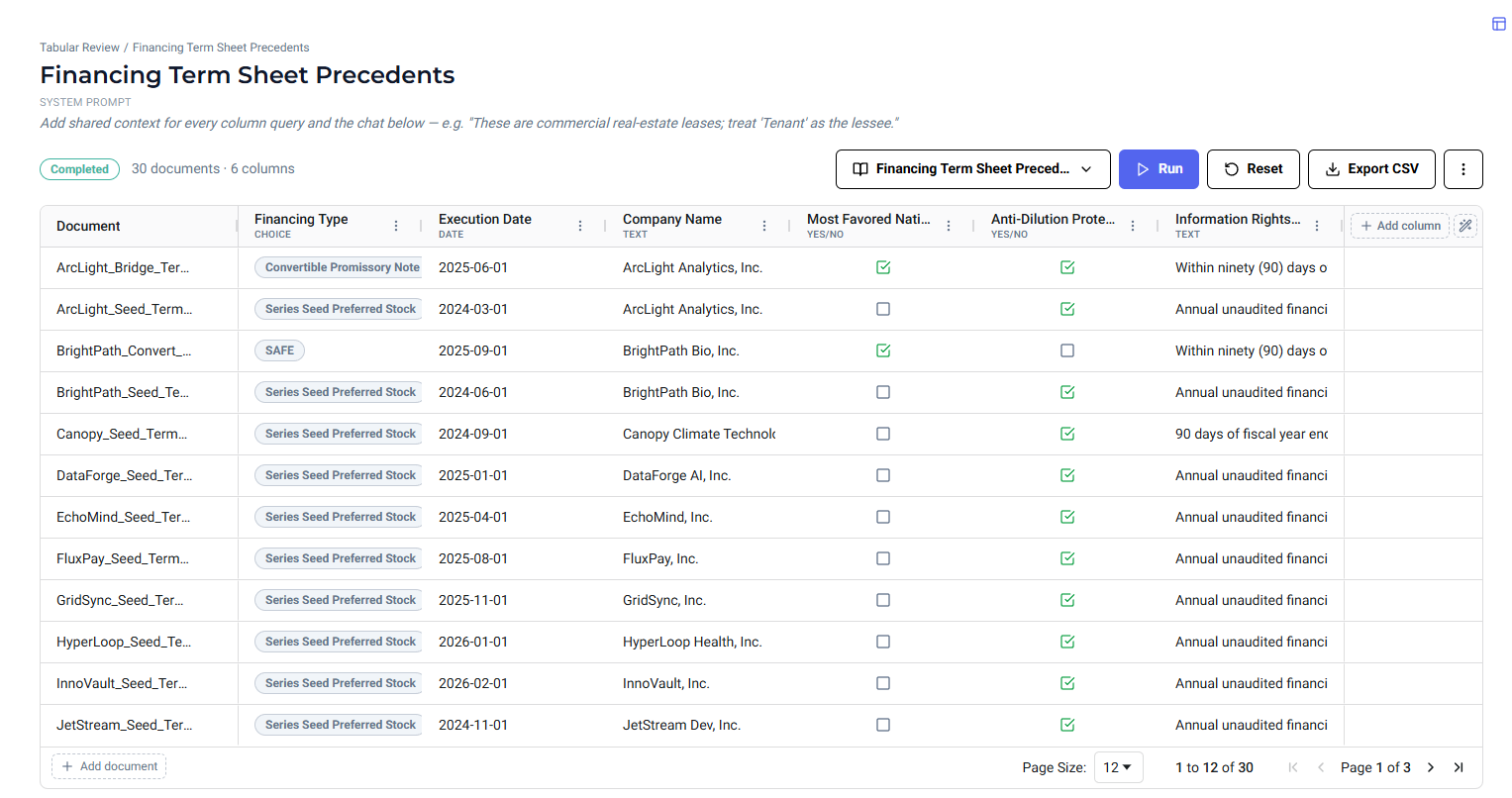
Tabular Review lets you query multiple documents against a defined set of criteria and view the results in a structured matrix. Instead of reading each document individually or running the same query repeatedly, you attach a set of documents, define what you are looking for with typed columns, and run. The platform queries every document against every column and streams results in real time. Every result links back to the source text that grounded it.
You can sort and pin columns, add documents or columns mid-session, reorder columns, and ask follow-up questions across the full matrix using the chat interface below the table.
Tabular Review is a preview feature. Contact your Customer Success Manager or raise a support ticket to get it enabled for your instance.
Getting Started
- Navigate to
Lega Lab. - Under the
Toolssection, clickTabular Review. - Click
New Reviewto create a new review, or click an existing review to open it.
System Prompt
At the top of every review is a System Prompt field. Use this to add shared context that applies to every column query and the chat below — for example, "These are commercial real-estate leases; treat 'Tenant' as the lessee." This helps the platform interpret your documents consistently across all columns.
Attaching a Knowledge Source
Before adding columns, attach a knowledge source containing the documents you want to review. Click the knowledge source button in the top right of the review to open the dropdown, then choose one of the following:
- Select knowledge source — choose from an existing knowledge source. You must be the creator or have the knowledge source shared with you by the creator to see it listed here.
- Create new knowledge source — create a new one from scratch. Follow the standard knowledge source setup steps (see Working with Documents and Knowledge Sources in Lega).
Two additional options are available from the same dropdown once a knowledge source is attached:
- Upload file — adds a file directly to the attached knowledge source.
- Manage documents — opens the document manager for the selected knowledge source, where you can add, remove, or review the documents it contains.
Adding Columns
Columns define what you want to extract or analyse from each document. You can add columns manually or use the wizard to generate them.
Manual
Click Add your first column to open the column editor. For subsequent columns, click + Add column from the right side of the column headers.
In the column editor:
- Enter a Name for the column.
- Select a Response type from the dropdown. The available types are:
- Text — open-ended text extraction
- Yes/No — boolean yes or no
- Number — numeric values
- Date — dates in any format
- List — a list of extracted items
- Choice — a value from a defined set of options you specify
- Write a Query describing what to ask of each document, or click
Autoto have Lega generate a query based on the column name. - Click
Add column.
Column Wizard
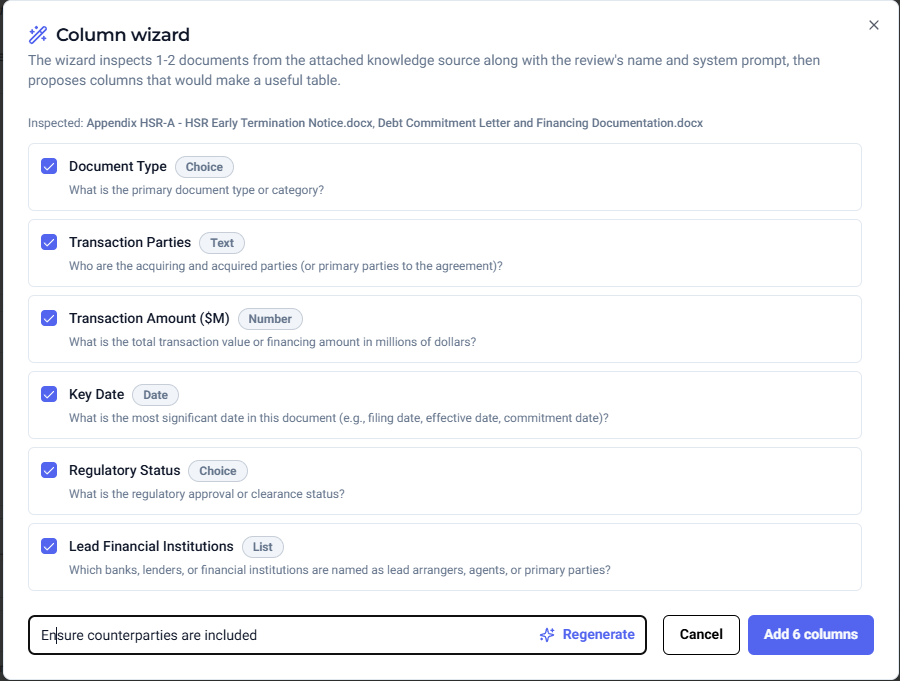
Click Wizard to open the Column wizard. The wizard inspects one to two documents from your attached knowledge source along with the review name and system prompt, then proposes a set of columns that would make a useful table.
- Each suggested column shows its name, response type, and the query that will be used.
- Use the checkboxes to select or deselect individual columns.
- Type in the chat input at the bottom to describe what you are looking for and click
Regenerateto produce a new set of suggestions. - When you are happy with the selection, click
Add [n] columns.
Running the Review
Once your knowledge source is attached and at least one column is defined, the review runs automatically. The status badge changes to Queued and a progress counter shows how many cells have been completed. Cells populate in real time as results come in.
To stop a review in progress, click Cancel in the top right.
Working with the Matrix
Adding columns mid-review
Click + Add column on the right side of the column headers to add a new column at any point, or click the wizard icon beside it to use the Column wizard. Only the new column is queried; existing results are not re-run.
Adding documents mid-review
Click + Add document at the bottom of the table to add documents to the knowledge source. Only the new documents are queried against all existing columns; existing results are not re-run.
Reordering and managing columns
Drag columns to reorder them. To edit, pin, or delete a column, click the three-dot menu next to the column label and select from Edit , Pin to front , or Delete .
Viewing source citations
Click any cell in the matrix to open a citation panel showing the source text from the document that grounded the result.
Discussing the table
Use the Discuss this table chat interface below the matrix to ask follow-up questions. Responses are grounded in the full matrix and the attached knowledge source.